Budget vs. Consumption
The purpose of this section is to demonstrate your financial health by displaying resource consumption against budget planning for your cloud provider in a clear way.

Loading and updating data
Data is collected on a daily basis at 08:00 (America/Sao Paulo)
- Last update: Last time when billing data was loaded into our platform.
Prerequisites
 Service Account registered on the integration steps must have the appropriate read permissions:
On the BigQuery table with the billing data.
On the S3 bucket containing the billing data files.
On the storage container containing the billing data files.
 Data loaded on the Financial Structure section.
After integration, it is necessary to upload your financial structure to enable the loading of the your cloud resources consumption data.
- Editing your budgets: it is possible to alter your budget for any given cost center through the platform. To do this your go to Cost Center > Click on the specific cost center > Edit the budget.
 Availability of billing data by the cloud provider:
Each provider has a specific timeframe for billing data updates, delays or failures on this export impact the data synchronization on the dashboards of our platform.
- Billing data must be available on the BigQuery table configured on the integration steps.
Data usually starts to come in after 24 hours from the billing data export configuration to BigQuery. Depending on the amount of data and environment this can take more time. Further details can be found on the provider's documentation.
- Billing files must be available on the S3 buckets configured during the integration phase.
After creating the report, it can take up to 24 hours until it is available on the S3 bucket. More details on the provider's documentation.
- Billing files must be available in the configured storage containers configured on the integration phase.
Usually it takes 4 hours for the billing files to be sent to the storage container after configuring the export. More details on the provider's documentation.
No integration
If the user skips integration upon first access, an illustration is displayed, guiding them to complete the integration steps so that the data can be ingested and visualized.
Filters
Filters play an important role, enabling a detailed analysis of your data, highlighting specific information and easing informed decision making.
-
Provider → Found on the upper bar of the platform's UI, it refers to the cloud provider being utilized. Other providers can be integrated through the button

-
Period → This section starts with the current year filtered by default. The period indicates the month in which the resource was used, indicating the consumption for past months, forecast for the following month and the budget for the whole period.
-
Cost Center → Um centro de custo é uma unidade que monitora despesas associadas a atividades ou departamentos.
-
Cost Center Manager → Nome e e-mail do responsável pelo centro de custo.
The period filter allows you to view your company's expenses over a specific period, making it easier to understand cloud resource consumption. Using the provider filter, you can analyze expenses by provider individually or across all providers at the same time.
In addition, the other filters offer options for detailed analysis by cost center and manager, providing a more segmented and strategic view of financial data.
Filters can be combined to refine your analysis even further. When one is selected, the options in others are automatically adjusted (e.g., selecting Finance cost center limits manager options to Finance only).
Clearing Filters
To clear all previously applied filters use the "Clear all" option, also you can remove specific filter option by clicking on the 'x' icon next to the desired filter.
General Data
Total consumption and all values that make up it's sum are shown according to the applied filters:
- Total consumption → Value to be paid considering resource consumption, support, usage commitments, credits and adjustments made by the provider.
- Resource consumption → Cost related to all consumed resources on the period.
- Support → Costs related to support fees.
Support is the additional fee charged for customer service and technical assistance, it varies according to the level of the support agreement you have with your cloud provider. It covers from technical problems to consulting services given by the provider. To understand which services are offered and how they are billed see the documentation for each provider (GCP, AWS e Azure).
-
Usage commitment → The usage commitments allow that users receive discounts when they agree to utilize certain amounts of specific resources for a previously defined period. Each cloud provider has it's own rules and conditions for these commitments, we reflect these values according to each rule that these cloud providers bring.
-
GCP - Committed Use Discounts (CUD):
-
Automatic Discount: Applied automatically to the continued use of specific cloud resources.
-
No need for specific management: Discount applied to overall resource usage.
-
Flexibility on configuration: Choice of different machine types and combinations of CPU and memory offerings.
-
-
AWS - Reserved Instances (RI):
-
Discount on Costs: Substantial discounts over the price of on-demand usage.
-
Reserved Capacity: Availability guarantees for capacity in certain regions and specific instance types.
-
Flexibility: Possibility of selling idle instances on the AWS Reserved Instance Marketplace.
-
-
Azure - Reserved Virtual Machine Instances (VM Reserves):
-
Substantial Discounts: Discounts for commited usage of virtual machines for a period of 1 to 3 years.
-
Flexible Model: Reservations can be applied to various virtual machine types, allowing flexibility on the allocation of discounts.
-
-
Important
All negotiations related to commited usage discounts and credits must be made exclusively and directly with each cloud provider.
-
Credits → Credits established through a contract with a cloud provider.
-
Adjustments → Providers can ocasionally run into billing errors, service interruptions or performance problems. Cost adjustments related to these situations will be considered after the closing of the billing invoice month. Note that these adjustments can result in increments or decrements of the total cost of your invoice. These will be displayed the same way as the images above. To know more read these: GCP, AWS e Azure.

-
Forecast → An estimate of future costs based on current trends and spending history. The goal of the forecast is to antecipate what the costs will probably be in the near future. Allowing the financial and operation teams to identify trends of consumption and adjust their usage accordingly.
How the forecast is calculated:
-
Past months: There is no forecast for past months.
-
Actual month: The forecast is calculated based on the mean daily cost up to the current day, that is, this mean cost is projected for the rest of the month.
-
Before the forecast for the current month is made, we consider a minimum date (typically 2 to 3 days after the start of the month, depending on whether the month started on a weekend). This condition avoids the case where the forecast is calculated to soon, guaranteeing that there is enough data in the current month to enable a more precise estimation.
-
We multiply the mean daily cost by number of days in the month to obtain a estimation of the total cost at the end of month.
-
Cost adjustments by the cloud provider are also taken into account for better forecasting precision.
-
-
Budgeted → Budget value planned for the filtered months.
Time Zone (GCP)
Cost data may show variations between the GCP Console and the exported data due to differences in how time zones are handled:
-
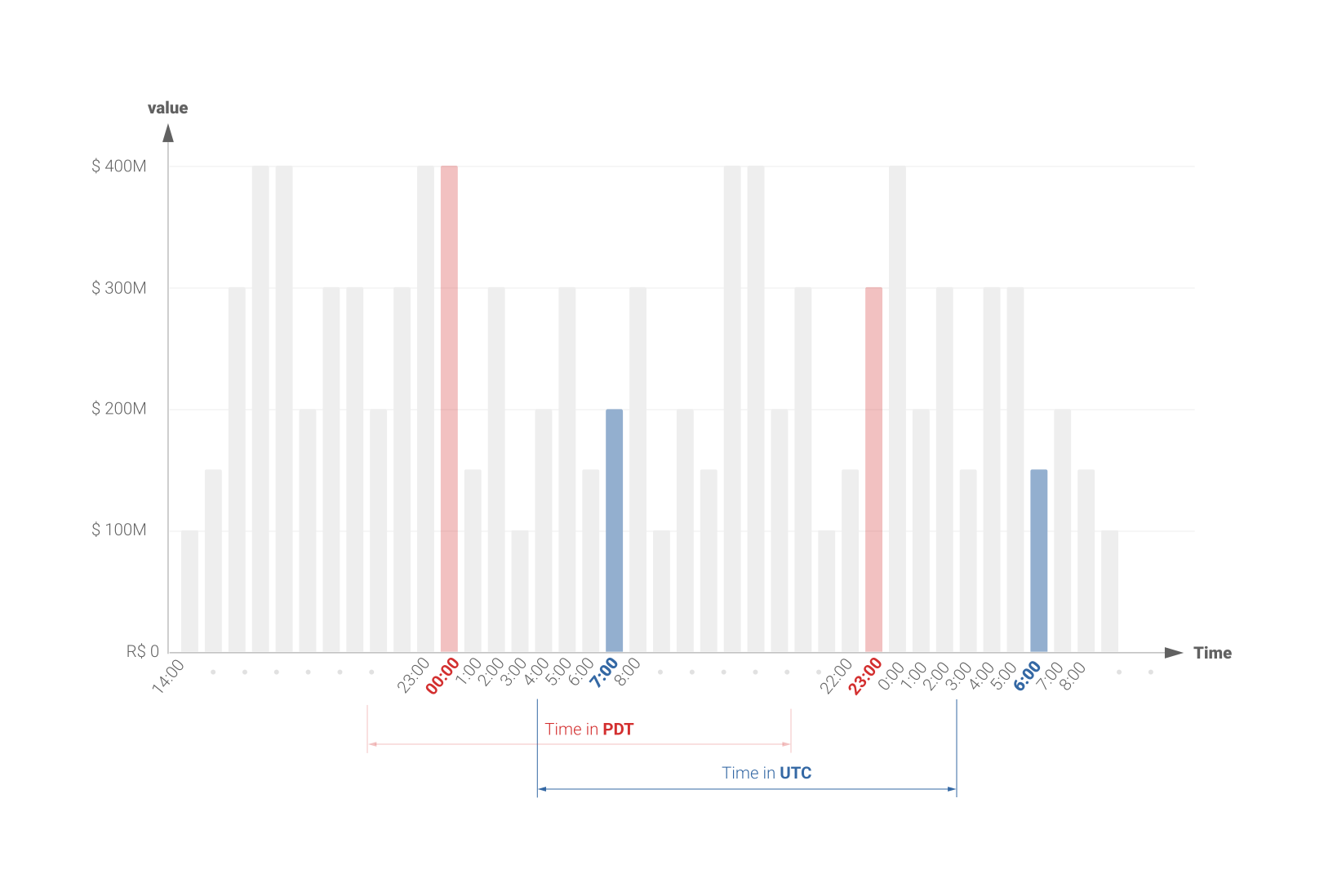
GCP Console: Displays cost data using Pacific Time (PT). During Pacific Standard Time (PST – winter), the time zone is UTC-8. During Pacific Daylight Time (PDT – summer), the time zone is UTC-7. The values shown in the console reflect this time zone.
-
Exported Data: On the other hand, the exported GCP data follows the UTC (Coordinated Universal Time) standard. UTC is a time standard that serves as the basis for calculating time zones worldwide.
When comparing GCP Console data with exported data, discrepancies are common, especially during day transitions or in analyses with hourly granularity.
Example 1 with Chart
To illustrate the difference in time zones and their impact on costs per hour and per day, observe the chart below:
Example 2
- Cost per day: Imagine a resource generated a total cost of US$100.00 for an activity that occurred on 2024-01-20 at 02:00:00 UTC.
- In the GCP Console (Pacific Time – PST, UTC-8 in winter): This cost will appear associated with the day 2024-01-19 at 18:00:00 (6 PM), since 02:00:00 UTC minus 8 hours = 18:00:00 of the previous day. Therefore, the total cost for the day 2024-01-20 and for 2024-01-19 will differ depending on whether you view it in the GCP console (Pacific Time) or in the cost table data (UTC).
- In the Exported Data (UTC): The cost will be associated with the day 2024-01-20 at 02:00:00 UTC.
As a result, the total daily cost in the GCP Console (Pacific Time) may differ from the total daily cost for the same day in the exported data (UTC).
- Difference in hours: If you analyze hourly costs, the time zone difference becomes even more evident.
- A cost generated between 9 PM and midnight São Paulo time (UTC-3), for example, will be displayed in the GCP Console within that time range corresponding to Pacific Time (UTC-8 or UTC-7).
- However, in the exported data, this cost will be distributed among the corresponding hours in UTC (00:00–03:00).
Tips for Correct Data Interpretation
To avoid misinterpretations, follow these tips:
-
Know Your Time Zone: Be clear about the Pacific Time (PST/PDT) used by the GCP Console and how it relates to the UTC used in the exported data.
-
Consistency: When comparing data, always use the same time zone reference. If using exported data (UTC), make sure to apply UTC to your comparisons.
-
GCP Documentation: Refer to the official Google Cloud Platform documentation for detailed information on how cost data is handled and which time zones are used in different contexts.
Chart for Budget vs. Consumption
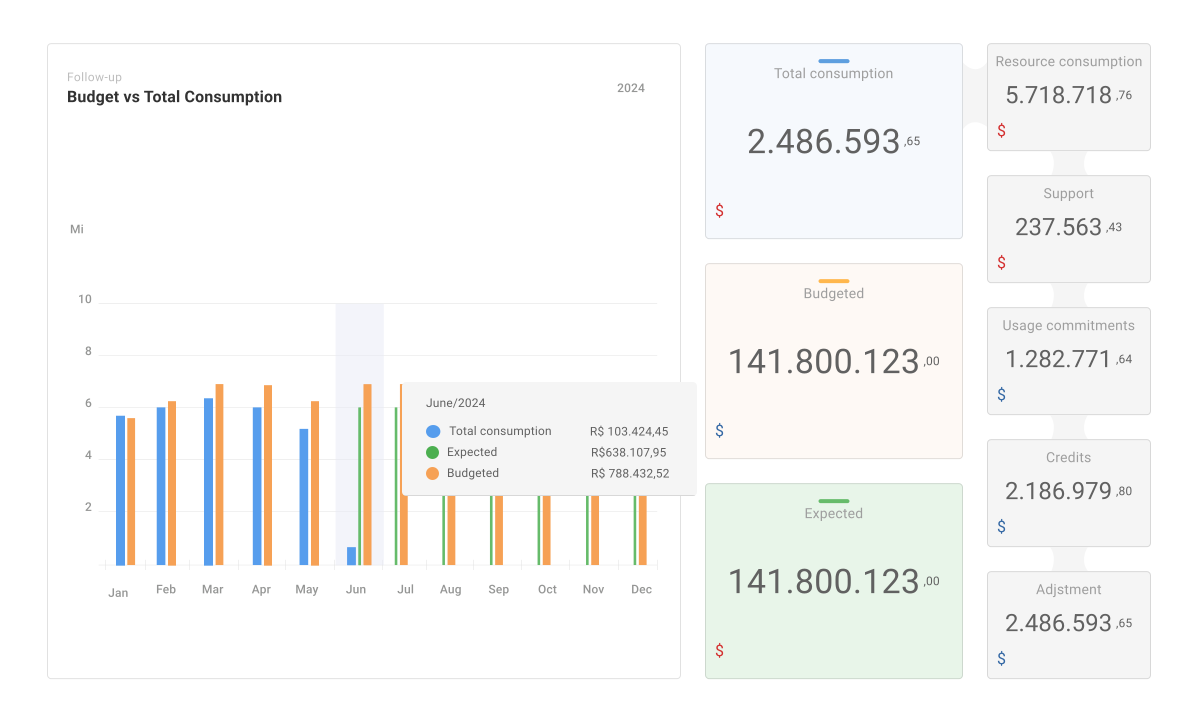
Hovering the mouse cursor over the chart will exhibit the values by subject in the month.
This graph has the role of comparing what was the budget for the period (usually a year), represented by the orange bar, with the total consumption of cloud resources which is indicated by the blue bar. The green bar represents the forecast, which is calculated using the total spending of the current month. If the period on the filter is increased, the date markers will be more spaced out but value will remain on a monthly basis, independent of what interval is chosen. To see the spending details of a specific month you just need to hover the cursor over the date line.
Chart for total spending above budget for cost center
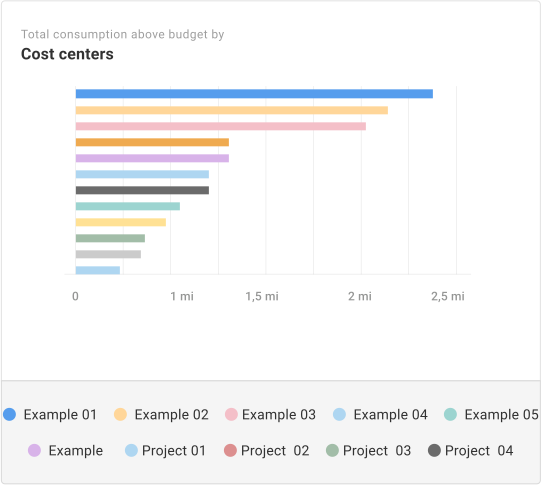
Here are grouped the cost centers that went over budget on the filtered period. Helping identify which areas are going beyond the specified financial limits, which allows a detailed analysis of the necessary adjustments to be made.
Chart for total spending above budget per manager

On this graph the managers responsible for the cost centers that went over budget on the filtered period are shown. This complements the graph with the costs for each cost center, making it easier to identify who is responsible for the financial excesses and apply the appropriate corrective actions.
Chart for total spending per manager
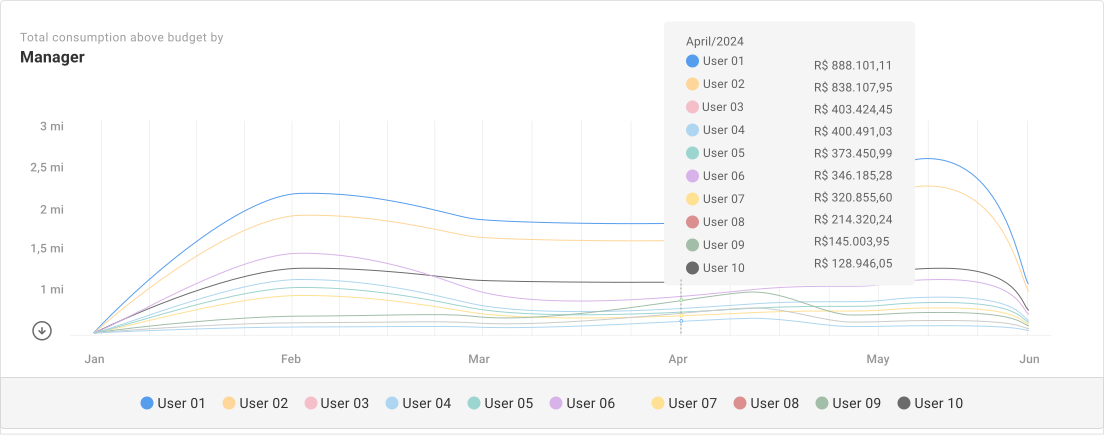
This chart presents the total consumption of resources of the cloud provider for each manager, regardless of whether they went over budget. It allows a visualization of the managers which are spending the most resources, facilitating monitoring and efficient expenditure management.