Consumption
The "Consumption" dashboard presents data about daily usage of resources from your organization in a given cloud provider, enabling a clear and detailed view of your cloud expending. Information is segmented per workspace, service and SKU.
Loading and updates of billing data
Data is collected on a daily basis at 08:00 (America/Sao Paulo).
- Last update: Last time when billing data was loaded into our platform.
Prerequisites
 Service Account registered on the integrations section must have all necessary read permissions:
On the BigQuery table containing the billing data export.
On the bucket with the files containing the billing data.
On the storage container that keeps the files with billing data.
 Data must be loaded into the section financial structure.
After integrating with our platform it is necessary to load your financial structure so the billing data can be properly processed.
 Availability of the billing data for each cloud provider:
- Billing data must be available on the BigQuery table that was chosen on the integration steps.
Usually this data is sent to the BigQuery table with a delay of at most 24 hours after configuring the billing data export on GCP. Depending on the load and environment this can take more time. Further details can be found on the provider's documentation.
- Files containing the billing data must be available on the appropriate storage buckets that where chosen on the integration process.
After enabling the report it can take up to 24 hours until these files are exported to the S3 bucket. More information is avaible on the documentation of the provider.
- Files containing the billing data export msut be available on the storage containers configured on the integration steps. Normally it takes 4 hours for the first data files to be available on the container storage from the moment the export is configure on the Azure Portal. More information about this process can be found on the provider's documentation.
Without integration
When an user opts to skip the integration steps while acessing the platform for the first time an image is shown. This is to guide him through the necessary steps to load and visualize his data on the platform.
Filters
Filters are crucial to enable a detailed analysis of the data, highlighting specific information and easing informed decision making.
-
Usage period → Indicates the period in which the resource was consumed, therefore it is not possible to choose a future date.
-
Cost center → Cost centers are units that aggregate spending associated to specific activities or departments.
-
Cost center Manager → Name and e-mail of the manager responsible for the cost center.
-
Workspace→ Name and provider of the associated workspace.
- GCP → Project Name
- AWS → AccountID
-
Azure → Subscription Name
-
Service → Name/Provider of the service.
The period filter enables visualizing the costs of your enterprise in a specific interval, facilitating an improved comprehension of your resource consumption on the cloud.
Beyond that, other filters offer options for a detailed analysis based on a cost center, manager, workspace or specific service. This promotes a segmented and strategic view of your financial data.
It is possible to combine filter options to refine your analysis. Each selected filter adjusts the available options on the other filters automatically, providing the means to a focused search. For example: in selecting the cost center 'Financial' the filter for workspaces will show only the workspaces that are related to this cost center.
Resetting filters
You can clear all selected filter options using the 'Clear all' option, you also can clear specific options by clicking on the 'x' icon next to the selected filter.
Consumption totals
The total consumption is composed of all the credited and debited values throughout the period:


Obs: The symbol “R$” in blue indicates credited values, while the “R$” in red represents debted values.
-
Resource consumption → Costs related to all resources being utilized.
-
Support → Costs related to the support fee of each cloud provider.
-
Commited Usage → Discounts related to continuous usage based on the resources.
Important
All negotiations related to commited usage must be made exclusively and directly with each cloud provider.
-
Credits → Credits estabilished through a contract with the cloud provider.
-
Total consumption → Value to be paid taking in consideration discounts, credits and adjustments.
Reports
We offer report generation with a maximum period of 31 days, in CSV, making a detailed analysis of resources possible. For more informations visit the reports section.
Charts - Consumption per workspace
Exhibits the daily usage and distribuition of resource consumption per workspace.
Workspace → Insight component that unifies the following concepts:
-
GCP Project → A GCP project is a container that organizes resources and related services, manages permissions and controls billing.
-
AWS Account → An AWS account is the level at which resources are provisioned, managed and organized, including multiple VPCs, projects and services.
-
Azure Subscription → An Azure subscription is a billing account where resources are provisioned, also where permissions and policies are managed.
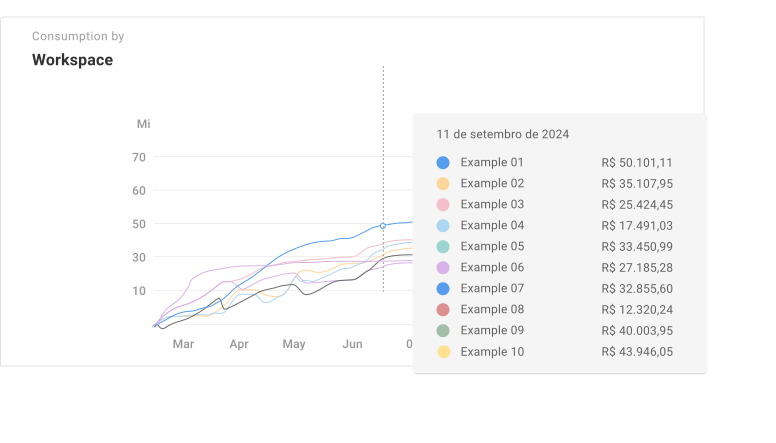
Shows daily consumption per service in dollars. Increasing the period range in the filter will make the date indicators adjust automaticaly, exhibiting a larger interval between them. The data points shown still correspond to daily usage idenpendent of the selected date interval. To visualize consumption details of a specific day you just need to place the mouse cursor over the it's corresponding point on the line in the graph. On all charts the top 10 workspaces with most cost are shown, the rest are unified under the "Others" tag.
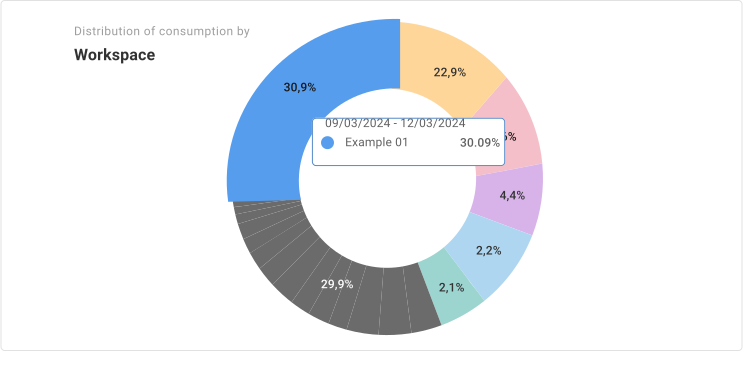
Shows the distribution of consumption per workspace, detailed by percentual in each one.

Legends
The graph legends appear in decreasing order, left to right, facilitating identification of the most expensive workspaces. Each appear listed by it's name and ID (except when it's an AWS workspace, where we show the ID two times because of the way the data is supplied by the provider)
Clicking each name enables the exhibition of the complete name for that workspace. It also shows the "Others" category, which indicates the quantity of workspaces with costs in the given period but are not part of the top 10 most expensive ones.
The other charts follow the same logic for exhibition.
Service
Shows daily consumption and usage distribuition per service via two graphs in timeline and in pizza format, like in the graphs for workspace.
The original names are shown for each service in each provider, without changes. For example: the virtual machine services on GCP is called Compute Engine, on AWS it is called Elastic Compute Cloud.
This concept was unified to encompass all providers. On GCP it refers to a stockeeping unit that identifies variations or services being offered. On AWS and Azure it is a nomenclature for service that specifies the specific service and unit of measure used for billing, bringing a detailed traceable view of resource consumption.s
This way we bring workspace and service on the same chart.
Anomaly Alerts
Alerts notify you about unexpected and unusual spikes in your cloud service consumption, helping to avoid excessive and unplanned spending.
How Anomaly Detection Works (The Logic)
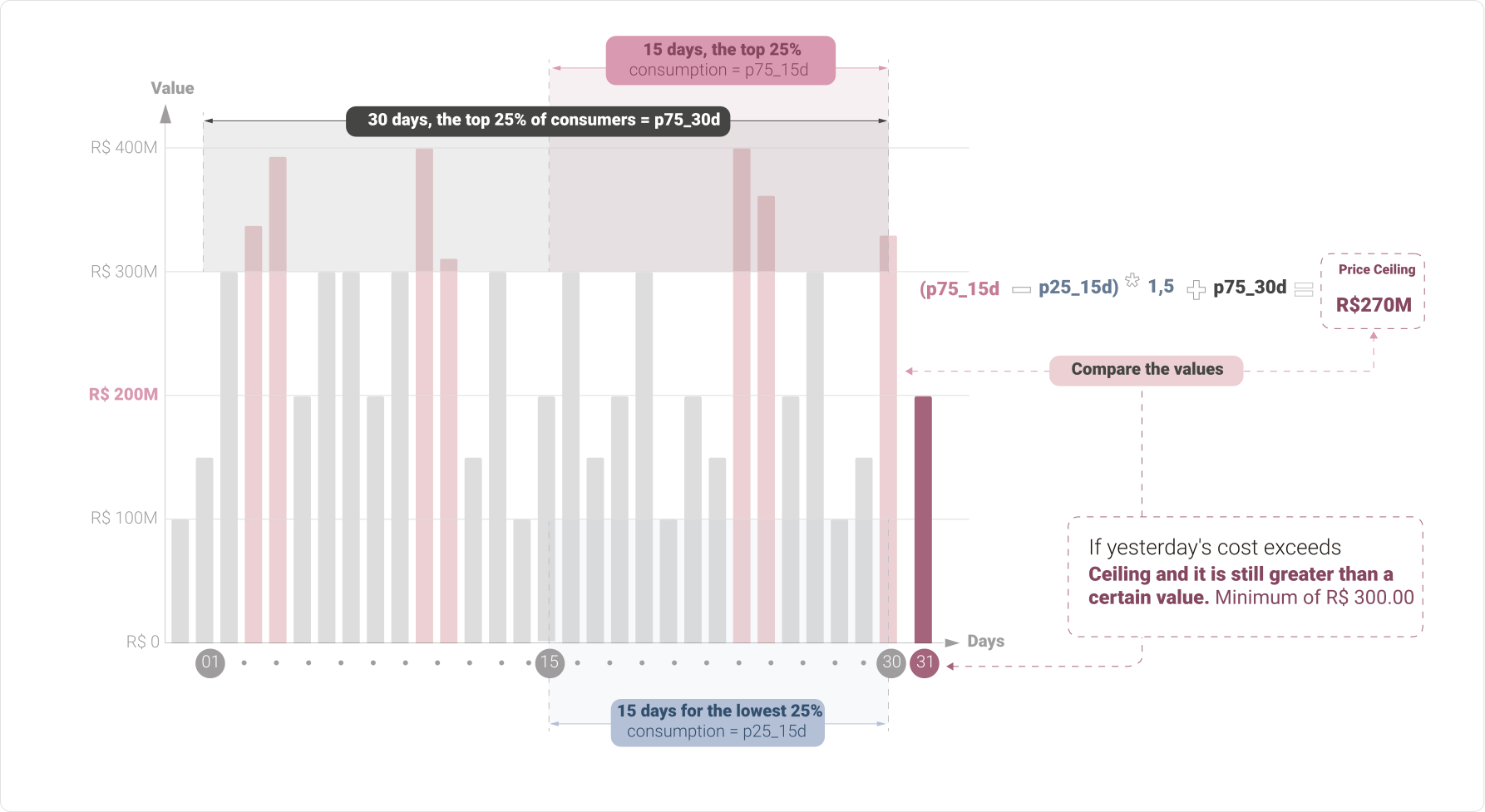
Our platform uses an intelligent statistics-based system to understand what is "normal" for your consumption. To do this, it defines a Maximum Acceptable Threshold for daily spending.
If your spending from yesterday exceeds this threshold, and is also greater than a predefined minimum value, the alert is triggered.
The Maximum Acceptable Threshold
The system calculates the Maximum Acceptable Threshold by comparing your 30-day consumption with the variation from the last 15 days:
-
Historical Baseline (30 days): The system looks at your consumption over the last 30 days and finds the value that only the top 25% most expensive days exceed. We call this the High Historical Baseline.
-
Slack Range (15 days): The system measures how much your consumption varies over the last 15 days. This variation is multiplied by 1.5 (what we call "Slack") and is added to the High Historical Baseline.
Alert Triggering
The system marks an anomaly if:
- Yesterday's Cost is greater than the Maximum Acceptable Threshold.
- And the cost is greater than the Minimum Cost of R$ 300.00 (to avoid alerts about very small spikes).
Example 01:
Yesterday's cost > Maximum acceptable threshold

and

Yesterday's cost ≥ Minimum cost
Example 02:
| Metric | Value | Explanation |
|---|---|---|
| High Historical Baseline (p75 30d) | R$ 1,000.00 | Only 25% of days in the last 30 days cost more than R$ 1,000.00. |
| Recent Variation (15 days) | R$ 100.00 | The normal variation of your cost over the last two weeks is R$ 100.00. |
| Slack (R$ 100.00 x 1.5) | R$ 150.00 | The slack is R$ 150.00. |
| Yesterday's Cost | R$ 1,250.00 | The cost exceeded the Threshold of R$ 1,150.00. Alert Triggered. |
Accessing and Managing Alerts
When an anomaly is detected, the event will be recorded on the platform and you will be notified by email.
-
On the Platform: You can access the Anomaly History directly in the consumption tab under SKU/Usage category.
-
Anomaly Management: The history screen allows you to:
- View details such as the exact deviation value and which cloud service caused the spike.
- Use filters to search for events by Provider (AWS, GCP, etc.) or Status.
- Confirm Knowledge: When analyzing the anomaly, click Confirm Knowledge to change the status to Closed. This indicates that you are aware of the spending and prevents new alerts from being triggered about the same atypical consumption event.